Storage
/
Access control & keys
Access control & keys
One set of workspace credentials authenticates the S3 API. Whether an object is readable without them depends on the bucket, and on whether you signed a link for it.
4 min read
Workspace credentials
Your workspace has an Access Key ID and a Secret Access Key, shown under Settings → Storage access keys. They authenticate every S3 API call.
They authenticate nothing else. Email, deploys and the platform API use a scoped API key from the card below them, which is a different credential with a different lifetime.
One key covers every region. Storing in a second region does not issue a second key: the same credentials work against each region's endpoint, so only the endpoint and region in your client config change. A bucket shows the endpoint and region to pair them with on its own page.
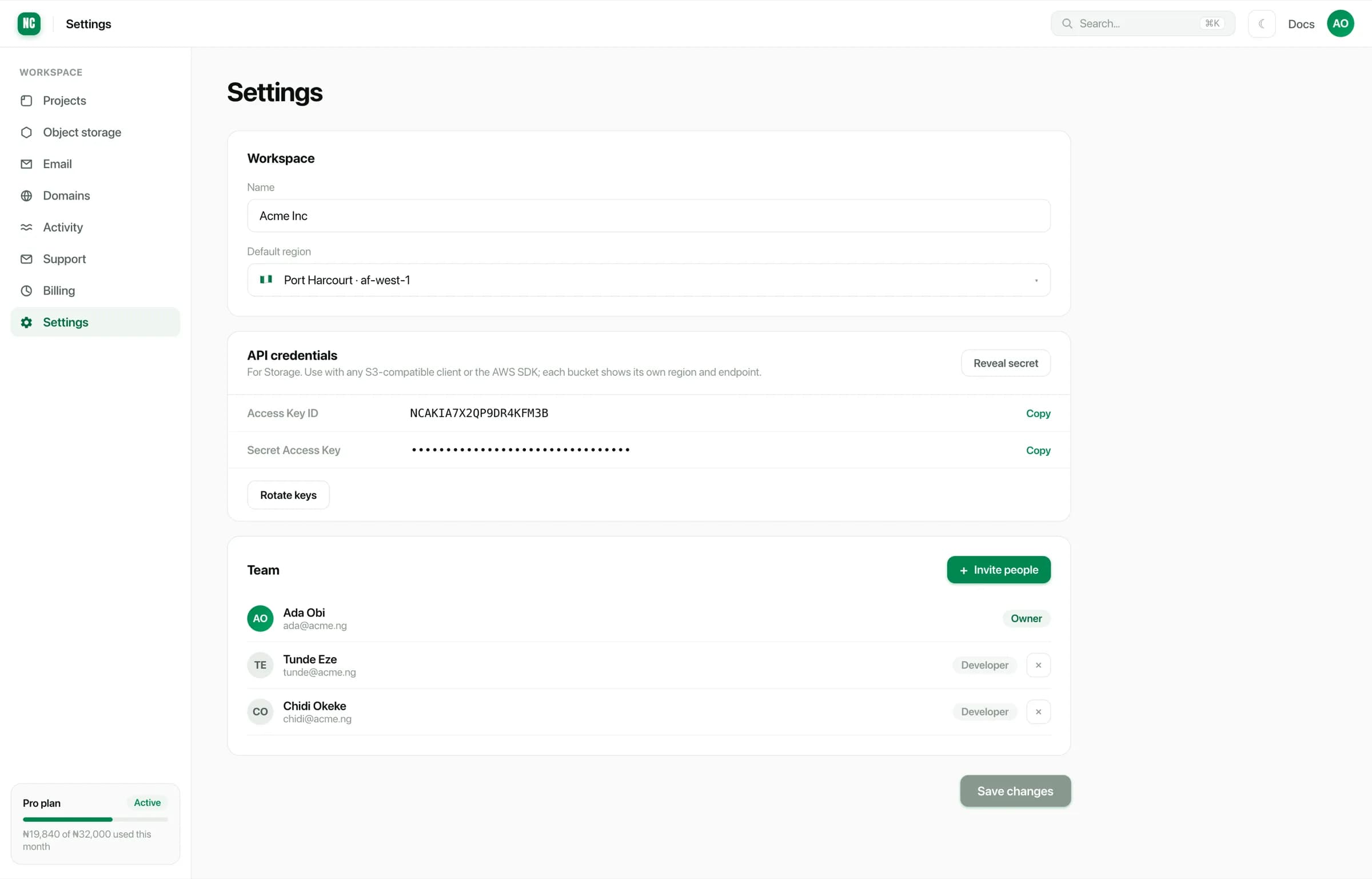
Treat the secret like a database password:
- Keep it in environment variables, not in the repository.
- Do not ship it to a browser or a mobile app. Anything a client can read, a user can extract. Sign a URL instead.
- Rotate it if it may have been exposed.
Rotating keys
Rotate keys issues a new pair. Any client still using the old secret stops working, so plan the change:
- Rotate.
- Update the variables on every service that uses storage.
- Redeploy those services so they pick up the new values.
Rotation affects the whole workspace, not one bucket or one service. Check which services hold the credentials before rotating in production, including cron jobs, which are easy to forget because they are not serving traffic.
Public and private buckets
Access is set per bucket, on its Permissions tab.
Private means objects require credentials, or a signed link. This is the default, and the right setting for anything belonging to a user.
Public read means every object in the bucket is readable by anyone with its URL, with no credentials. Suitable for assets that are already public.
Public read is not per object. Turning it on exposes everything in the bucket, including anything uploaded there earlier. Keep public assets in a bucket that has never held anything private.
Signed links
A signed URL grants time-limited access to one object in a private bucket. That is how you let a user download their own invoice without making the bucket public:
A short-lived download link
import { GetObjectCommand } from '@aws-sdk/client-s3';
import { getSignedUrl } from '@aws-sdk/s3-request-presigner';
import { s3 } from './storage.js';

export const downloadUrl = (key) =>
  getSignedUrl(s3, new GetObjectCommand({ Bucket: 'my-bucket', Key: key }), {
    expiresIn: 300,
  });
Two rules:
- Authorise before you sign. The signature proves the link came from you, not that the requester is allowed the file. Check ownership first.
- Keep expiry short. A signed URL works for anyone holding it until it expires, so minutes rather than days.
CORS for browser uploads
A browser uploading straight to a bucket makes a cross-origin request, which the bucket must allow. Without it the browser blocks the preflight and the upload fails before any bytes are sent. That usually shows up as a network error with nothing in your server logs, because the request never reached your server.
On the bucket's Permissions tab, allow:
- your site's origin,
- the methods you use (
PUTfor uploads,GETfor reads), - the headers your client sends, such as
Content-Type.
List your real origins explicitly, including the local one you develop against. A wildcard origin on a bucket that accepts uploads lets any site on the internet use your signed URLs.
Lifecycle rules
For objects that should not live forever, the bucket's Management tab takes
rules such as expiring anything under a tmp/ prefix after a number of days.
That keeps temporary uploads from accumulating without a cleanup job.