Storage
/
Uploading & browsing files
Uploading & browsing files
The bucket browser lists objects with their type, size and age, and handles uploads, downloads and deletes. It is the quickest way to check what your application actually wrote.
3 min read
Browsing a bucket
Choose Browse on any bucket. Objects are listed with their type, size and when they were last modified, and the bucket's endpoint and region are shown above the list.
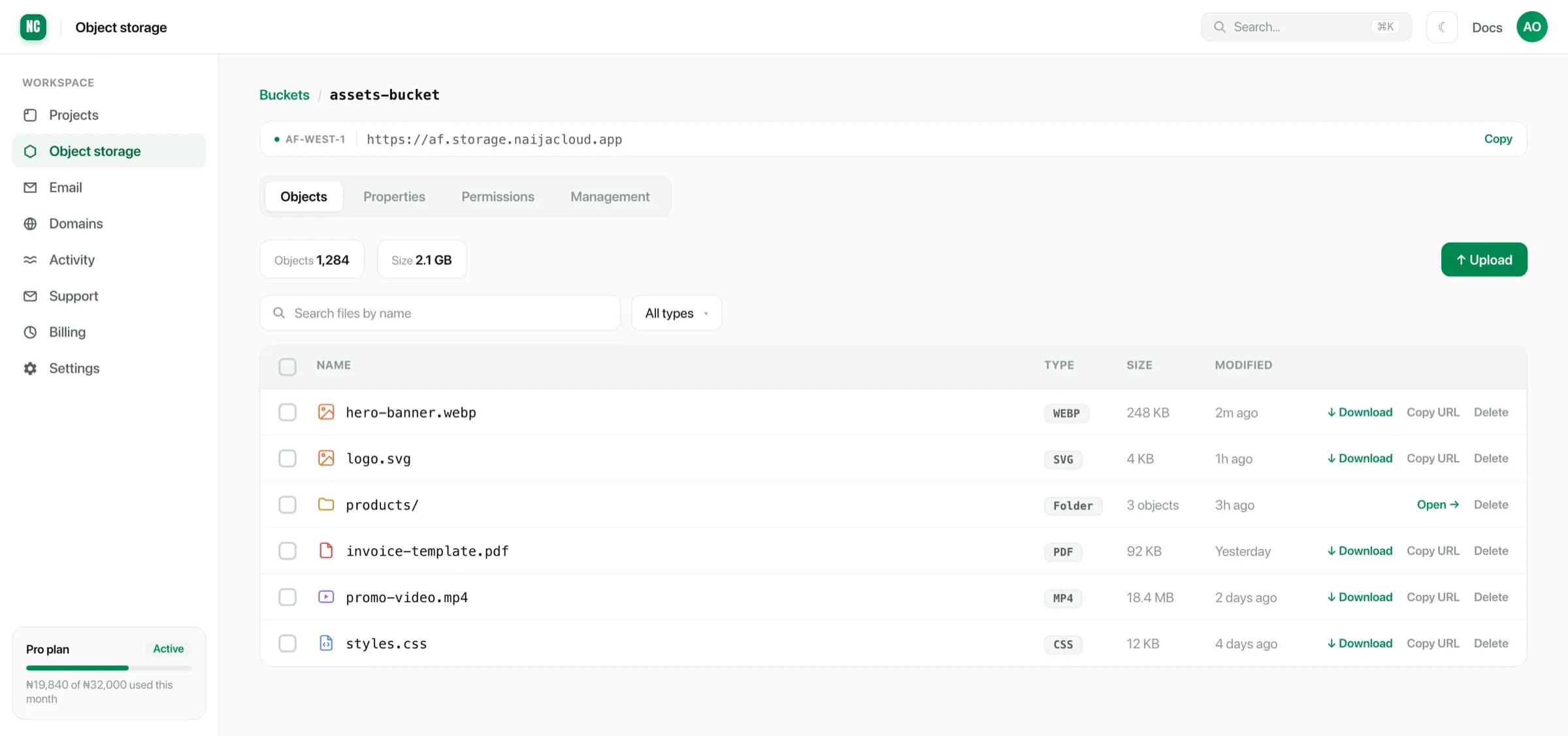
For a bucket with many objects, search by name or filter by type rather than paging through everything.
Folders
Object storage has no real directories. A key like products/hero.webp is a
single flat name. The browser interprets / in keys as folders, so a bucket
organised with prefixes browses like a file tree.
Keys and how they appear
logo.svg                 # at the top level
products/hero.webp       # inside a "products" folder
products/2026/spring.jpg # nested two levels
Choosing a prefix opens it, and the breadcrumb walks back up.
Prefixes are worth planning. uploads/<user-id>/<file> lets you find or remove
everything belonging to one user later. A flat bucket of random filenames does
not.
Uploading
Upload takes files or whole folders, by drag-and-drop or from a file picker. Progress is shown per file, and a folder upload preserves its structure as key prefixes.
Uploading from the dashboard is meant for one-off work: seeding assets, replacing a file, adding something a colleague sent you. Anything routine should go through the S3 API from your application.
A large folder upload is many individual transfers. Leave the tab open until it finishes. Closing it part-way leaves the objects that already completed in place and the rest missing, which looks like a partial folder rather than a clear failure.
Downloading and copying URLs
Each object offers:
- Download. Fetch the object.
- Copy URL. Copy its address. In a public-read bucket this is a link anyone can open. In a private bucket it needs credentials or a signed link to be useful.
- Delete. Remove it.
Objects can also be selected in bulk and deleted together.
Deletes are immediate and are not covered by database backups. If a bucket holds data you cannot regenerate, treat delete as permanent.
Properties, permissions and management
The tabs above the object list cover the bucket rather than individual objects:
- Properties. Its region, endpoint and size.
- Permissions. Public or private, and related settings. See Access control & keys.
- Management. Rules for objects as they age, such as expiring temporary uploads after a number of days.